> ## Documentation Index
> Fetch the complete documentation index at: https://docs.cloud.coinbase.com/llms.txt
> Use this file to discover all available pages before exploring further.
# Quickstart- Claim testnet funds onchain using Faucets API
This guide will show you how to create a faucet request and claim testnet funds within minutes.
You will:
* Create a wallet and a faucet request for each [supported token standard](/faucets/introduction/welcome#supported-assets)
* Claim testnet funds onchain
* Return faucet transaction information and verify wallet balance(s)
## Prerequisites
### For UI (CDP Portal) option:
* [Created](https://portal.cdp.coinbase.com/create-account) and [signed in](https://portal.cdp.coinbase.com/signin) to an existing CDP account
### For programmatic option:
* [Node.js](https://nodejs.org/en) 22.x+ if using Typescript
* [Python](https://www.python.org/downloads/) 3.10+ if using Python
* [Created](https://portal.cdp.coinbase.com/create-account) and [signed in](https://portal.cdp.coinbase.com/signin) to an existing CDP account
* Created a [CDP API key](https://portal.cdp.coinbase.com/projects/api-keys) and [generated a Wallet Secret](https://portal.cdp.coinbase.com/wallets/non-custodial/security)
If you're following the programmatic examples below, you should have your API key and wallet secret ready to initialize the CDP client.
## UI (CDP Portal)
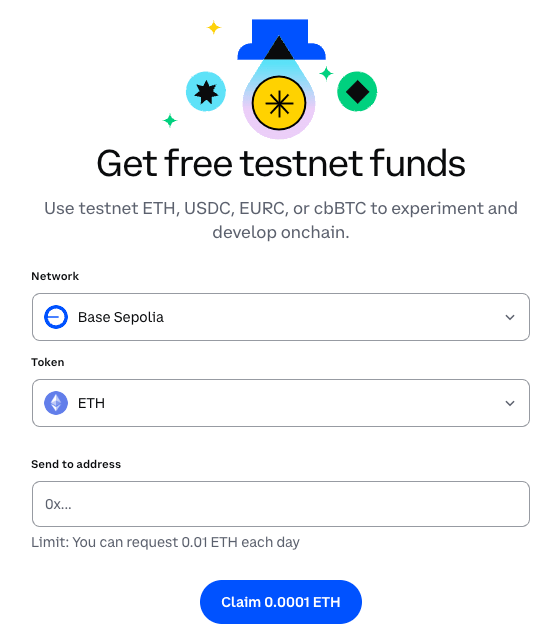
While the CDP Faucets API allows for programmatic faucet requests, you can also use the CDP Portal UI with a wallet address to claim funds in-browser.
Assuming you completed the [prerequisites](#prerequisites), navigate to Faucets.
1. Select a **Network** (either [Base Sepolia](https://sepolia.basescan.org/), [Ethereum Sepolia](https://sepolia.etherscan.io/), or [Solana Devnet](https://explorer.solana.com/)).
2. Select a **Token** (either ETH, USDC, EURC, cbBTC, or SOL).
3. Enter a wallet address and click the **Claim** button.
Continue reading to programmatically claim testnet funds.
## Programmatically
The majority of this quickstart will focus on claiming faucet funds using a new account created using our [CDP non-custodial wallets](/wallets/non-custodial-wallets/overview).
If you'd like to use your own wallet, skip to Step 4: [Use an external address](#4-use-an-external-address-optional).
### 1. Setup CDP client and create an account
First, initialize the CDP client and create an account. Add your CDP API key and wallet secret to your environment:
Create a `.env` file with your credentials:
```bash .env theme={null}
CDP_API_KEY_ID=your-api-key-id
CDP_API_KEY_SECRET=your-api-key-secret
CDP_WALLET_SECRET=your-wallet-secret
```
Install dependencies and create an account:
```typescript theme={null}
import { CdpClient } from "@coinbase/cdp-sdk";
import dotenv from "dotenv";
dotenv.config();
const cdp = new CdpClient();
// Create an EVM account on Base Sepolia (default)
const account = await cdp.evm.createAccount();
console.log(`Created account: ${account.address}`);
```
Accounts are created for [Base Sepolia](https://docs.base.org/chain/network-information#base-testnet-sepolia) by default. You can specify other EVM networks when making faucet requests.
Create a `.env` file with your credentials:
```bash .env theme={null}
CDP_API_KEY_ID=your-api-key-id
CDP_API_KEY_SECRET=your-api-key-secret
CDP_WALLET_SECRET=your-wallet-secret
```
Install dependencies and create an account:
```python theme={null}
import asyncio
from cdp import CdpClient
from dotenv import load_dotenv
load_dotenv()
async def main():
cdp = CdpClient()
# Create an EVM account on Base Sepolia (default)
account = await cdp.evm.create_account()
print(f"Created account: {account.address}")
await cdp.close()
asyncio.run(main())
```
Accounts are created for [Base Sepolia](https://docs.base.org/chain/network-information#base-testnet-sepolia) by default. You can specify other EVM networks when making faucet requests.
### 2. Claim ETH from faucet
Continue reading to create an ETH faucet request.
ETH claim limits are capped at [1000 claims per every 24 hours](/faucets/introduction/welcome#supported-assets) at 0.0001 ETH per claim.
```typescript theme={null}
import { CdpClient } from "@coinbase/cdp-sdk";
import dotenv from "dotenv";
dotenv.config();
const cdp = new CdpClient();
// Create an account
const account = await cdp.evm.createAccount();
console.log(`Created account: ${account.address}`);
// Request ETH from faucet
const faucetResponse = await cdp.evm.requestFaucet({
address: account.address,
network: "base-sepolia",
token: "eth"
});
console.log(`ETH faucet transaction: https://sepolia.basescan.org/tx/${faucetResponse.transactionHash}`);
```
After running this example, you should see output similar to the following:
```console theme={null}
Created account: 0x3c0D84055994c3062819Ce8730869D0aDeA4c3Bf
ETH faucet transaction: https://sepolia.basescan.org/tx/0xd2ef7e373f99cc7deafa4e214c1cdac533d1a9b743106b62a33daebd05fb2b37
```
```python theme={null}
import asyncio
from cdp import CdpClient
from dotenv import load_dotenv
load_dotenv()
async def main():
cdp = CdpClient()
# Create an account
account = await cdp.evm.create_account()
print(f"Created account: {account.address}")
# Request ETH from faucet
faucet_hash = await cdp.evm.request_faucet(
address=account.address,
network="base-sepolia",
token="eth"
)
print(f"ETH faucet transaction: https://sepolia.basescan.org/tx/{faucet_hash}")
await cdp.close()
asyncio.run(main())
```
After running this example, you should see output similar to the following:
```console theme={null}
Created account: 0x3c0D84055994c3062819Ce8730869D0aDeA4c3Bf
ETH faucet transaction: https://sepolia.basescan.org/tx/0x0654306d8b7d20f440bd71e9cd475d44763c15eaff584c576faddd2e24801c98
```
### 3. Claim ERC-20 token from faucet
Continue reading to create a request for (and claim) ERC-20 funds from a faucet.
ERC-20 claim limits are capped every 24 hours dependent on [token symbol](/faucets/introduction/welcome#supported-assets).
After creating your account, request faucet funds for ERC-20 tokens by specifying the token type.
```typescript theme={null}
import { CdpClient } from "@coinbase/cdp-sdk";
import dotenv from "dotenv";
dotenv.config();
const cdp = new CdpClient();
// Create an account
const account = await cdp.evm.createAccount();
console.log(`Created account: ${account.address}`);
// Request USDC from faucet
const usdcFaucetResponse = await cdp.evm.requestFaucet({
address: account.address,
network: "base-sepolia",
token: "usdc"
});
// Request cbBTC from faucet
const cbbtcFaucetResponse = await cdp.evm.requestFaucet({
address: account.address,
network: "base-sepolia",
token: "cbbtc"
});
console.log("Faucet Transactions successfully completed:");
console.log(`USDC transaction: https://sepolia.basescan.org/tx/${usdcFaucetResponse.transactionHash}`);
console.log(`cbBTC transaction: https://sepolia.basescan.org/tx/${cbbtcFaucetResponse.transactionHash}`);
```
After running this example, you should see output similar to the following:
```console theme={null}
Created account: 0x3c0D84055994c3062819Ce8730869D0aDeA4c3Bf
Faucet Transactions successfully completed:
USDC transaction: https://sepolia.basescan.org/tx/0xc52f4578e487d12ff92b44fa3d9a21b6dfca772e05df5f0b723f2751178fe289
cbBTC transaction: https://sepolia.basescan.org/tx/0xdec3164e59ae53d616dbdebabf8bfac914a619160edd0344dca8d758d09491c0
```
```python theme={null}
import asyncio
from cdp import CdpClient
from dotenv import load_dotenv
load_dotenv()
async def main():
cdp = CdpClient()
# Create an account
account = await cdp.evm.create_account()
print(f"Created account: {account.address}")
# Request USDC from faucet
usdc_faucet_hash = await cdp.evm.request_faucet(
address=account.address,
network="base-sepolia",
token="usdc"
)
# Request cbBTC from faucet
cbbtc_faucet_hash = await cdp.evm.request_faucet(
address=account.address,
network="base-sepolia",
token="cbbtc"
)
print("Faucet Transactions successfully completed:")
print(f"USDC transaction: https://sepolia.basescan.org/tx/{usdc_faucet_hash}")
print(f"cbBTC transaction: https://sepolia.basescan.org/tx/{cbbtc_faucet_hash}")
await cdp.close()
asyncio.run(main())
```
After running this example, you should see output similar to the following:
```console theme={null}
Created account: 0x3c0D84055994c3062819Ce8730869D0aDeA4c3Bf
Faucet Transactions successfully completed:
USDC transaction: https://sepolia.basescan.org/tx/0x7379cef11acc99118f1a269b818dced87bdd63f03ebe702a5fb1ebb106b2d43c
cbBTC transaction: https://sepolia.basescan.org/tx/0x0e5c882c70ee297ecc3f2065232da501cbc5ec2097e249584af01e874f4feeff
```
### 4. Use an external address (optional)
You can also use your own wallet address to claim faucet funds directly. Simply provide your address to the faucet request.
```typescript theme={null}
import { CdpClient } from "@coinbase/cdp-sdk";
import dotenv from "dotenv";
dotenv.config();
const cdp = new CdpClient();
// Replace with your own wallet address
const externalAddress = "0x...";
// Request ETH from faucet for external address
const faucetResponse = await cdp.evm.requestFaucet({
address: externalAddress,
network: "base-sepolia",
token: "eth"
});
console.log(`ETH faucet transaction: https://sepolia.basescan.org/tx/${faucetResponse.transactionHash}`);
```
```python theme={null}
import asyncio
from cdp import CdpClient
from dotenv import load_dotenv
load_dotenv()
async def main():
cdp = CdpClient()
# Replace with your own wallet address
external_address = "0x..."
# Request ETH from faucet for external address
faucet_hash = await cdp.evm.request_faucet(
address=external_address,
network="base-sepolia",
token="eth"
)
print(f"ETH faucet transaction: https://sepolia.basescan.org/tx/{faucet_hash}")
await cdp.close()
asyncio.run(main())
```
You can monitor the transaction status by checking the blockchain explorer link provided in the response.
After running this example, you should see output similar to the following:
```console theme={null}
ETH faucet transaction: https://sepolia.basescan.org/tx/0xde2142cb2de6841b26160d2cff5ceb5acdaf4de30cbd58d4b607ab07a3e0bae5
```
## Video: Watch and learn
**Watch this video for a walkthrough of using faucets in CDP Portal:**
## What to read next
* [Faucets: Welcome](/faucets/introduction/welcome): An overview of faucets on CDP
* [CDP non-custodial wallets](/wallets/non-custodial-wallets/overview): Create and manage accounts using the CDP SDK
* [API key wallet quickstart](/wallets/quickstart/api-key-auth): Get started creating and managing accounts
* [CDP SDK Reference](/api-reference/v2/introduction): API reference for CDP wallet endpoints
 Continue reading to programmatically claim testnet funds.
## Programmatically
The majority of this quickstart will focus on claiming faucet funds using a new account created using our [CDP non-custodial wallets](/wallets/non-custodial-wallets/overview).
If you'd like to use your own wallet, skip to Step 4: [Use an external address](#4-use-an-external-address-optional).
### 1. Setup CDP client and create an account
First, initialize the CDP client and create an account. Add your CDP API key and wallet secret to your environment:
Continue reading to programmatically claim testnet funds.
## Programmatically
The majority of this quickstart will focus on claiming faucet funds using a new account created using our [CDP non-custodial wallets](/wallets/non-custodial-wallets/overview).
If you'd like to use your own wallet, skip to Step 4: [Use an external address](#4-use-an-external-address-optional).
### 1. Setup CDP client and create an account
First, initialize the CDP client and create an account. Add your CDP API key and wallet secret to your environment: