> ## Documentation Index
> Fetch the complete documentation index at: https://docs.cloud.coinbase.com/llms.txt
> Use this file to discover all available pages before exploring further.
# Staking TIA with Keplr Wallet
## Step 1. Create Wallet and Fund
1. Download the [Keplr Wallet](https://www.keplr.app/) extension and navigate to the extension on your browser.
2. Click **Create new wallet** or **Import an existing wallet**.
3. Securely store your recovery phrase and create a password.
4. Fund the newly created address with TIA.
## Step 2. Delegate to Coinbase Validator
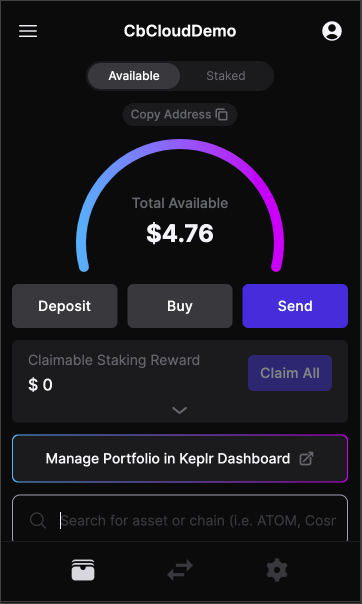
1. Navigate to the [Keplr Dashboard](https://wallet.keplr.app/) by clicking **Manage Portfolio in Keplr Dashboard** from the Keplr extension.
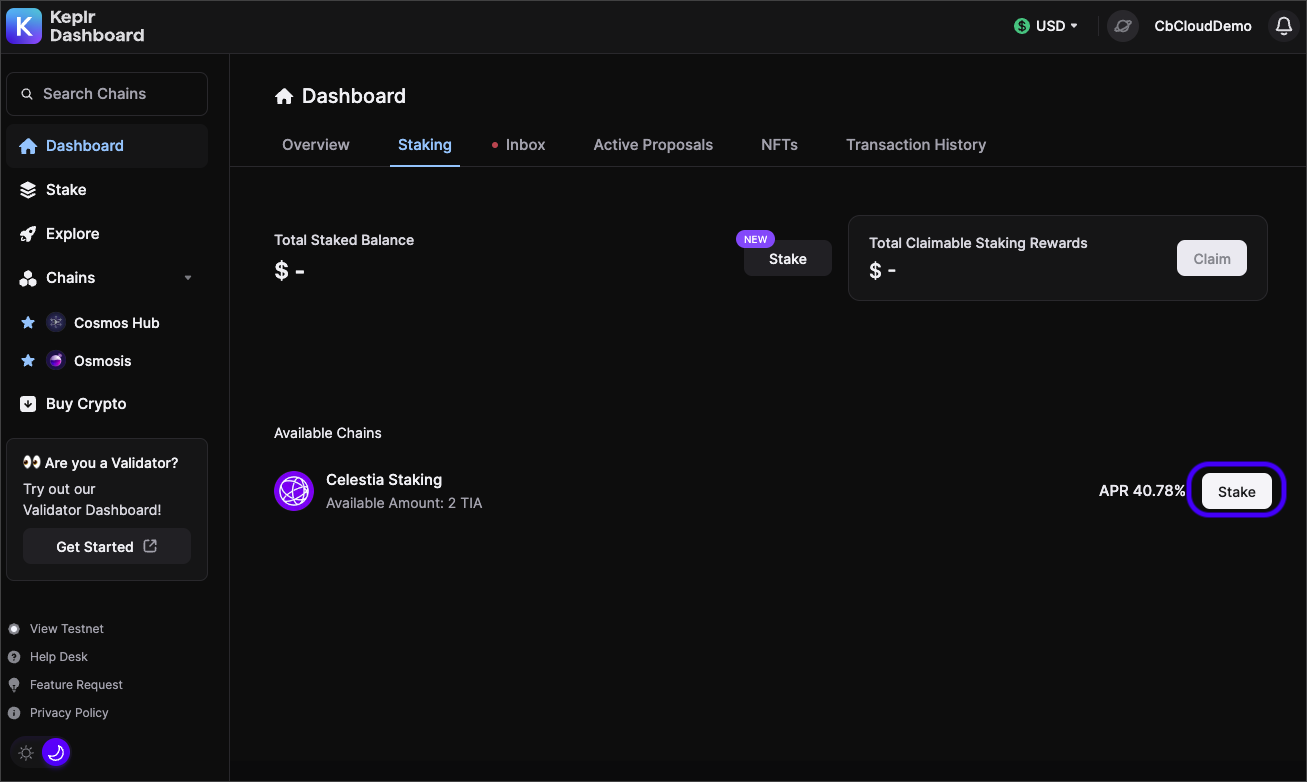
 2. Click on the **Staking** tab. If you have TIA, you will see the Celestia Staking option. Click on the **Stake** button.
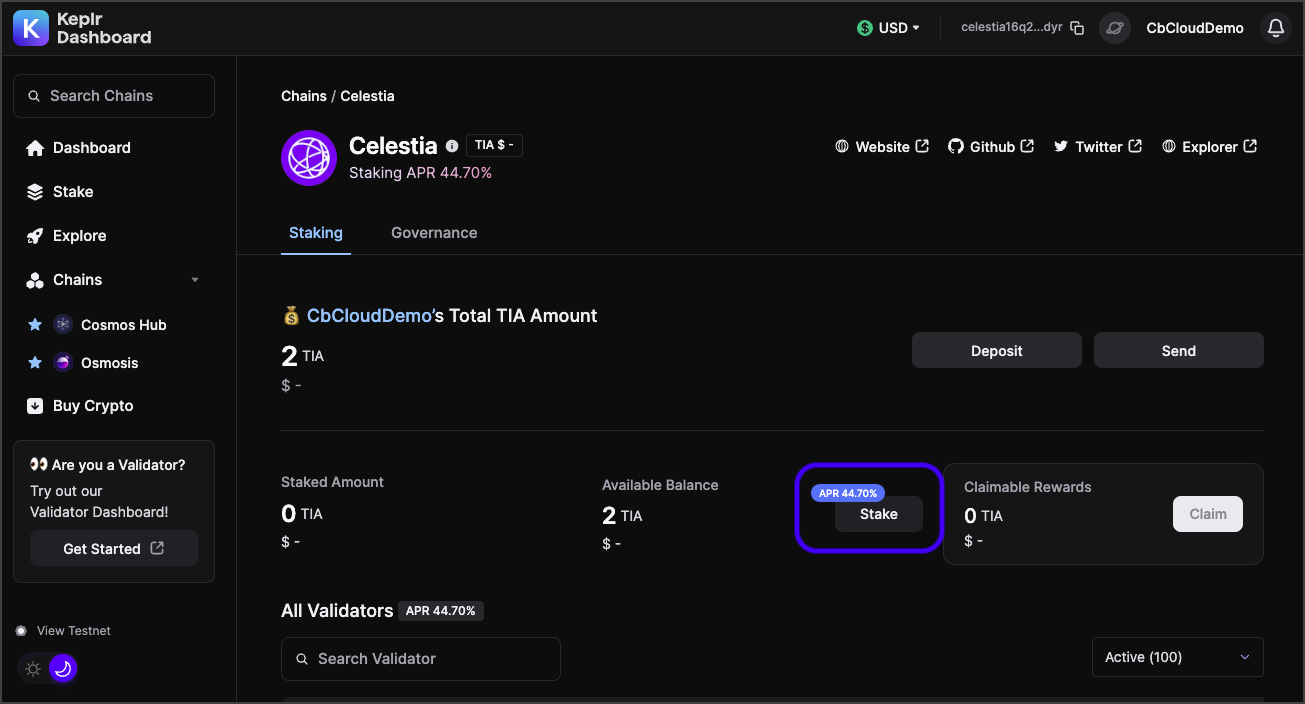
 3. On the Celestia page, click the **Stake** button.
 4. Search for the Coinbase validator and select it.
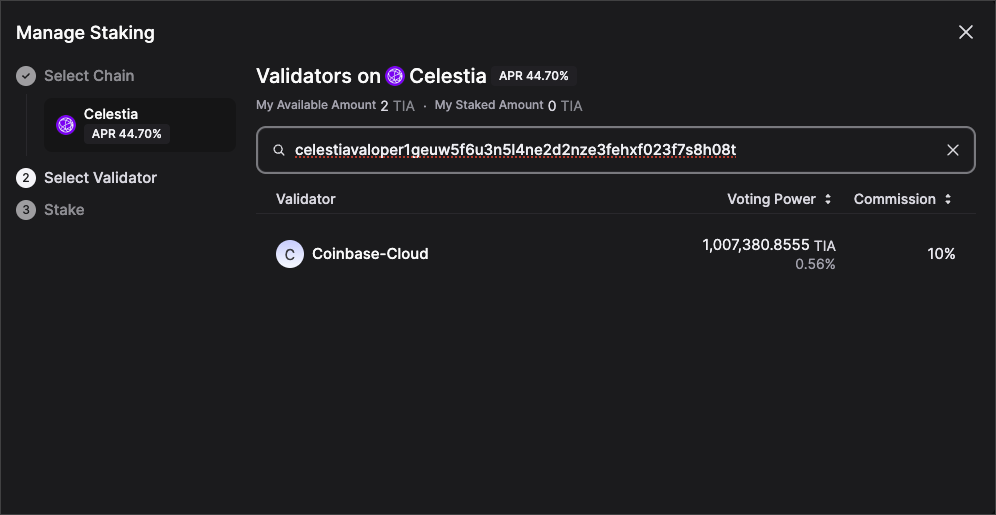 You can search by entering in the Validator Address `celestiavaloper1geuw5f6u3n5l4ne2d2nze3fehxf023f7s8h08t` or by searching `Coinbase`.
5. Enter in your desired amount of TIA to stake, and click **Stake**.
You can search by entering in the Validator Address `celestiavaloper1geuw5f6u3n5l4ne2d2nze3fehxf023f7s8h08t` or by searching `Coinbase`.
5. Enter in your desired amount of TIA to stake, and click **Stake**.
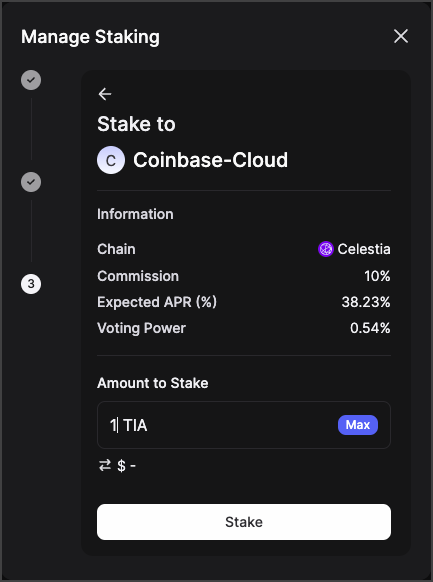 6. If all looks correct, complete and confirm the transaction. Once completed your funds will be delegated.
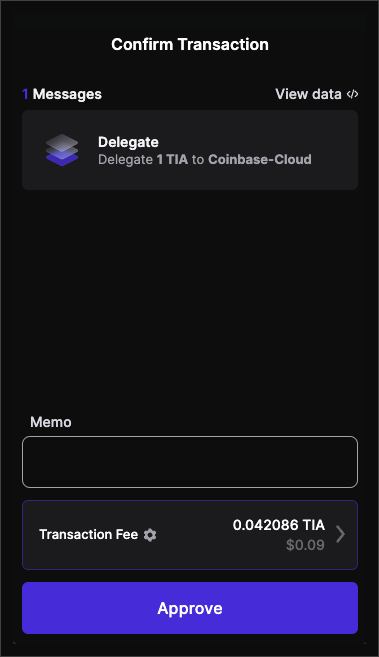 The APY may vary from the screenshots in this tutorial.
**Congratulations! You are now staked to a Coinbase validator.**
The APY may vary from the screenshots in this tutorial.
**Congratulations! You are now staked to a Coinbase validator.**